Geographic layout and map background
Since version 1.1, Gephi Lite can place nodes from their geographic coordinates, and display a map behind the graph.
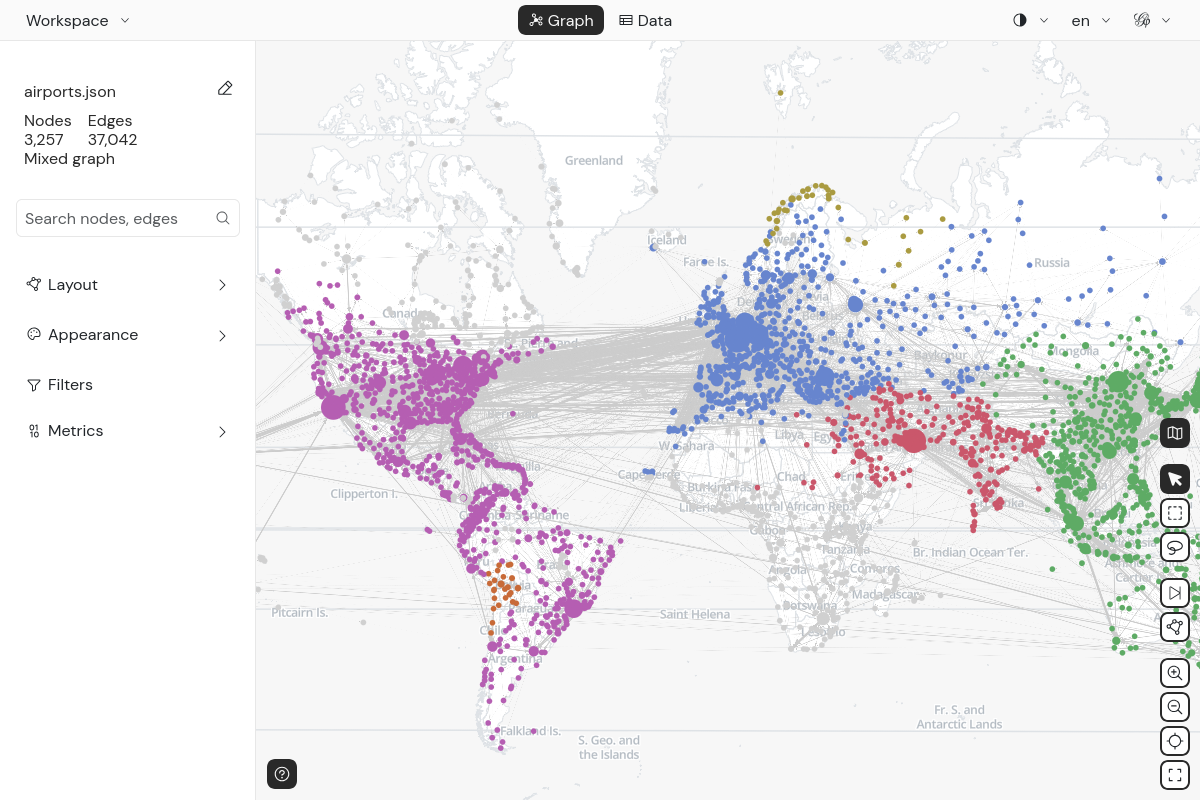
Geographic layout
The Geographic layout is in the Layout panel. It positions nodes according to their latitude and longitude.
It needs two number node attributes: one for the latitude, one for the longitude. Gephi Lite tries to prefill them,
from attributes named like lat or latitude, and lng, lon, long or longitude.
Parameters
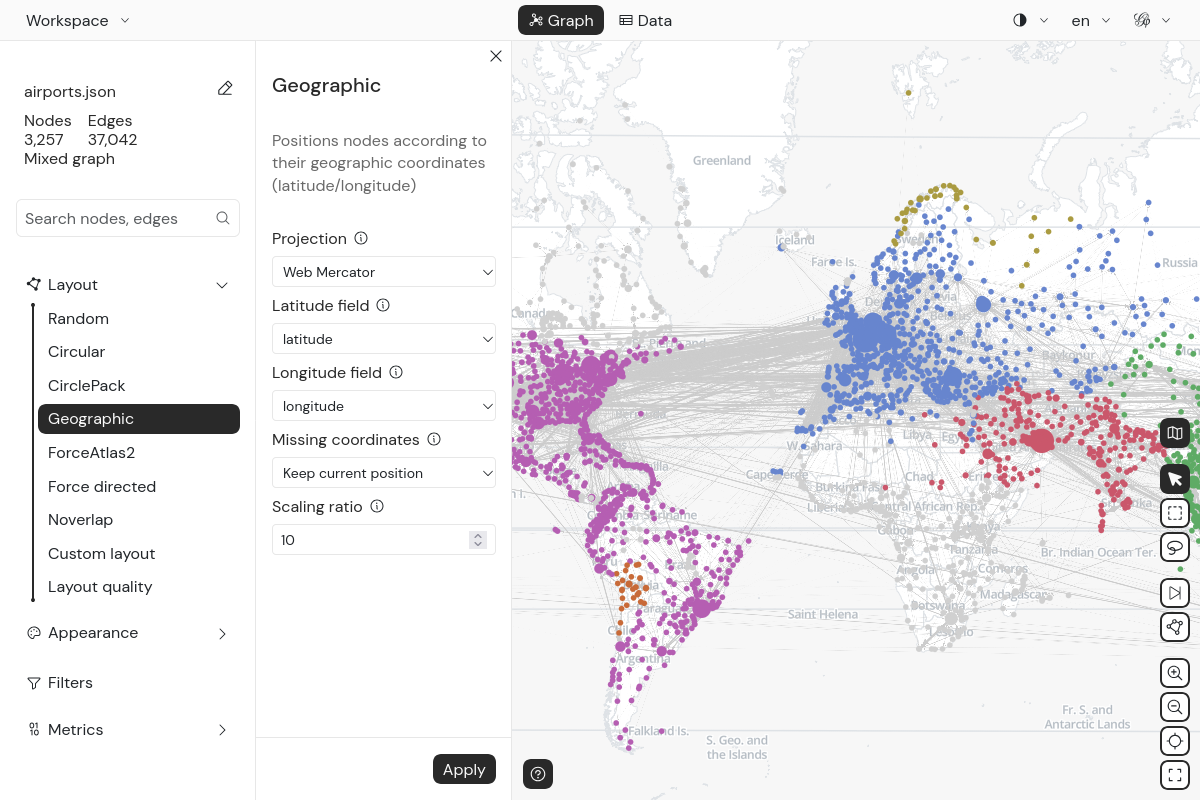
- Projection: how coordinates are projected on the plane:
Web Mercator(default): the only one that allows displaying a map backgroundEquirectangularEqual EarthNatural Earth 1
- Latitude field and Longitude field: the node attributes holding the coordinates
- Missing coordinates: what to do with nodes that don't have valid coordinates:
Keep current position(default): these nodes don't movePlace in grid (left of map): these nodes are arranged in a grid, on the left of the geolocated nodesNeighbors barycenter + grid: each of these nodes is placed at the barycenter of its geolocated neighbors. Nodes with no geolocated neighbors go in the grid.
- Scaling ratio: multiplies all the resulting coordinates (default:
10)
The geographic layout runs once: it does not keep running like ForceAtlas2. You can still drag nodes.
Map background
When the last layout run is the Geographic layout with the Web Mercator projection, the map background is automatically enabled. A map button also appears in the graph controls, at the bottom right, to toggle it on and off.
When the map is displayed, node and edge sizes are adapted so that the graph stays readable on top of it.
If you run another layout, or the geographic layout with another projection, the map background is disabled, since nodes positions don't match the map anymore.
Map style
The map is rendered using MapLibre. Its look is described by a JSON style, following the MapLibre Style Spec.
To edit it, open Appearance > Background, and click the Edit button in the Map background section. This opens a
JSON editor, prefilled with the current style. The style must be a valid JSON object.
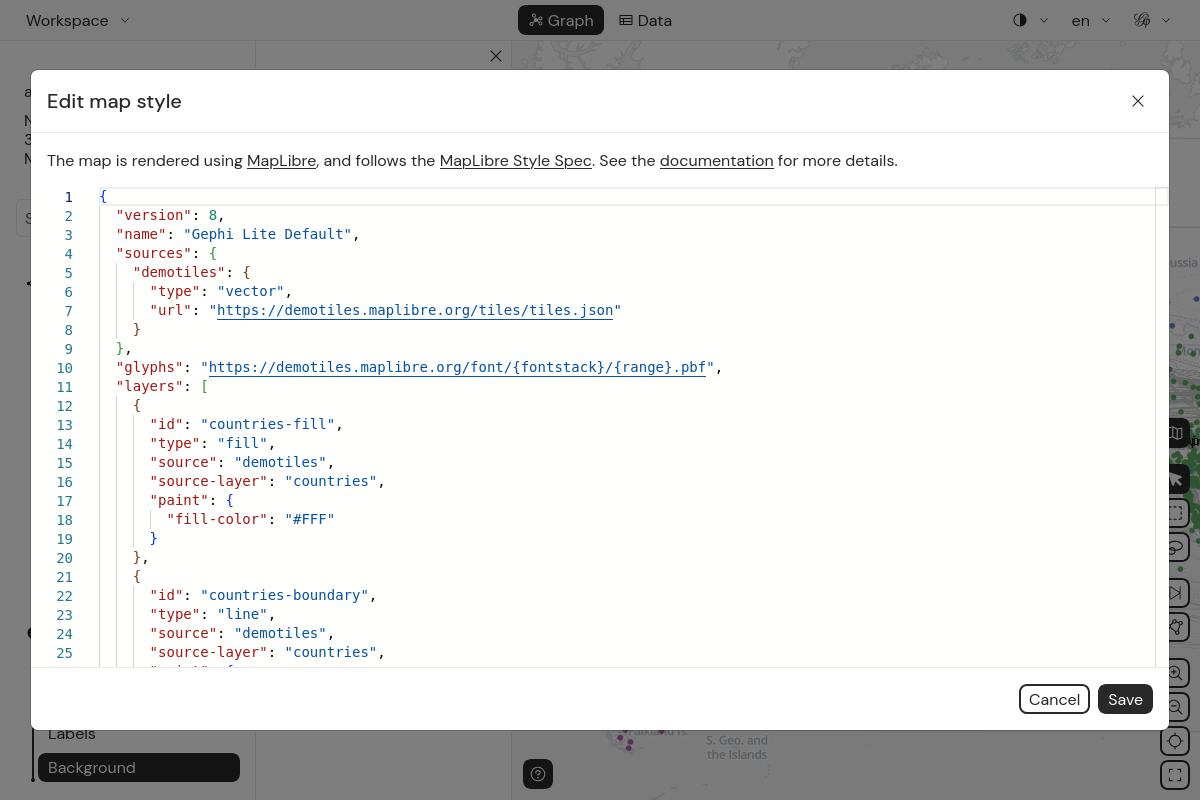
Once a custom style is set, a reset button appears next to the Edit button, to go back to the default style.
The map style is part of the appearance, so it is saved in Gephi Lite workspace files.
Default style
By default, Gephi Lite uses the MapLibre demo tiles. They show countries, their borders, and their names. The colors follow Gephi Lite's light or dark theme.
Using other tiles
You can point the style sources to any vector or raster tiles source supported by MapLibre. For instance, here is a
minimal style using OpenStreetMap raster tiles:
{
  "version": 8,
  "sources": {
    "osm": {
      "type": "raster",
      "tiles": ["https://tile.openstreetmap.org/{z}/{x}/{y}.png"],
      "tileSize": 256,
      "attribution": "© OpenStreetMap contributors"
    }
  },
  "layers": [{ "id": "osm", "type": "raster", "source": "osm" }]
}
MapLibre also supports PMTiles archives. They are single files that can be
hosted on any static server, without a tiles server. Use the pmtiles:// prefix in the source URL:
{
  "sources": {
    "my-tiles": {
      "type": "vector",
      "url": "pmtiles://https://example.com/my-tiles.pmtiles"
    }
  }
}
If the map cannot be loaded (invalid style, unreachable tiles...), Gephi Lite shows error notifications, and the details are logged in the browser console.